AI-Powered Email Sorter & Auto-Responder
This workflow automates email management by using AI to categorize and summarize incoming emails, then automatically replying to specific categories. It streamlines inbox management and saves time by intelligently handling various types of emails.
The workflow automatically labels emails based on categories like Promotions, Social, Personal, Sales, Recruitment, Receipts, and Misc. It uses OpenAI to summarize emails, saving the summaries to Google Sheets for record-keeping, and can automatically generate and send replies. It also forwards specific emails based on their categorization.
Key features include AI-powered categorization, automated summaries, Google Sheets integration for documentation, and automated reply generation using OpenAI.
- •A sales team can use this workflow to automatically reply to leads and customer inquiries, ensuring a prompt response and improving customer satisfaction. The AI can extract key details from the email and generate a personalized response.
- •A recruiter can use this workflow to filter job applications, automatically acknowledge receipt, and forward promising candidates to the relevant hiring manager. This saves time and ensures no qualified applicant is overlooked.
- •A finance department can automatically categorize and archive receipts received via email into a Google Sheet. This simplifies expense tracking and makes it easier to prepare financial reports.
- •A customer support team can summarize customer issues sent via email and create a ticket in a tracking system. This provides a clear and concise overview of each problem.
- •An executive assistant can use this workflow to prioritize emails, summarize key points, and draft responses, allowing the executive to focus on more strategic tasks.
- 1Authenticate your Gmail account to grant access to read and send emails.
- 2Set up your OpenAI API credentials to enable AI-powered summarization and email generation.
- 3Connect to your Google Sheets account to store email summaries.
- 4Configure the Gmail Trigger node to specify the frequency of checking for new emails.
- 5Customize the Text Classifier node with your desired email categories and descriptions.
- 6Adjust the prompt in the OpenAI nodes to tailor the summarization and email generation to your specific needs.
- 7Update the Google Sheets node with your desired spreadsheet ID and sheet name.
- 8Test the workflow by sending test emails and verifying that the emails are categorized, summarized, and stored correctly.
{
  "id": "iwZkSdmV9ubXqBHK",
  "meta": {
    "instanceId": "d2017cc6d1e4b956d269a8123bffa72fb7aaa41ad37a73b7c0fb64c7d0e2edae",
    "templateCredsSetupCompleted": true
  },
  "name": "Email AI Agent",
  "tags": [],
  "nodes": [
    {
      "id": "db47294f-ee4b-40ec-ba4b-ce9dd1e1bfb0",
      "name": "Gmail Trigger",
      "type": "n8n-nodes-base.gmailTrigger",
      "position": [
        0,
        0
      ],
      "parameters": {
        "filters": {},
        "pollTimes": {
          "item": [
...- Gmail OAuth2
- OpenAi Api
- Google Sheets OAuth2 Api
Comments (0+)
Sign in to join the discussion
No comments yet. Be the first!
Related Workflows
Automate your job search with this powerful workflow! This workflow uses AI to understand your job preferences, then scrapes job boards like LinkedIn, Indeed, and Glassdoor for relevant openings.
It filters the results, extracts key information, and appends the job details to a Google Sheet for easy tracking. Spend less time searching and more time applying!
Key Features: AI-powered intent recognition, multi-source job scraping, structured data extraction, automated Google Sheets logging.
Automate email outreach with this n8n workflow! Sync Google Sheets data, send personalized emails, track opens, & manage subscriptions via Telegram automation
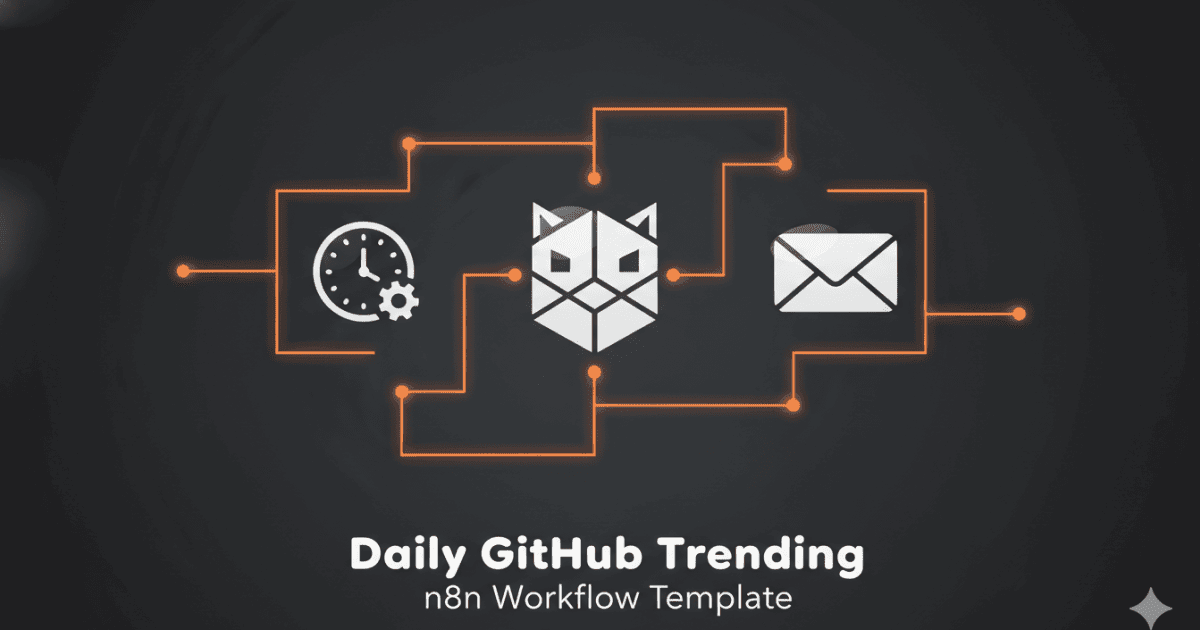
This workflow sends a daily email with the trending GitHub repositories. It uses the GitHub trending API to fetch the data and then sends a formatted email with the repository details.
The email includes the repository name, link, description, language, and stars. This workflow is perfect for developers who want to stay up-to-date with the latest trends in the GitHub community.
The workflow uses a daily trigger to fetch the data and then processes it using a series of nodes, including an HTTP request, data cleaning, and email sending. It's a great example of how n8n can be used to automate tasks and improve productivity.